Required GFX Settings
Genesis is graphics-based — incorrect display settings are the most common cause of issues. Set everything below before you calibrate or run a bot.
Operating System Settings
Genesis requires Windows. On macOS or Linux you can run it inside a virtual machine — see the Minimizing section of the Instructions page for setup guidance.
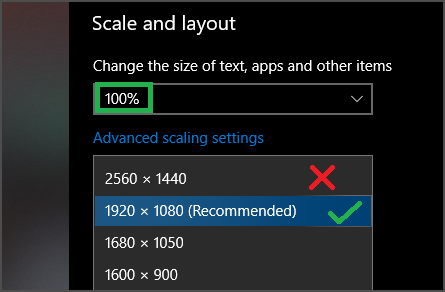
Right-click the Desktop, select Display settings, and confirm:
- Change the size of text, apps, and other items — set to 100%
- Screen resolution — must not exceed your hardware's native resolution (the one marked Recommended)
- Do not use custom aspect ratios
If you are not using a virtual machine, multiple monitors have the potential to interfere with the bot. Either deactivate extra monitors from Windows Display Settings, or use a virtual machine.
If running the game through a web browser: Browser zoom must be 100%.
OSRS
It is recommended to use either the default OSRS client or RuneLite.
Display mode
- OSRS environment → set RS to Fixed Mode
- OSRS-Resizable environment → set RS to Resizable – Classic and turn Transparent menus off
Recommended settings
- Data Orbs: On (the orbs next to the map showing HP, Prayer, and Run Energy)
- Roofs: Off (under Advanced Options)
- Zoom: right-click the mouse icon left of the zoom bar and select Restore Default Zoom
- Game brightness: Max
RuneLite — plugins to disable
Go to the RuneLite configuration panel:
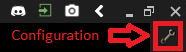
Disable the following plugins:
- Camera
- GPU
- Ground Items
- Interface Styles
- Inventory Grid and Inventory Viewer
- Item Charges
- Item Identification
- Item Prices and Item Stats
- Mouse Tooltips
- Stretched Mode
- Tile Indicators
- World Map
RS3
Log in to the game, and click the cogwheel icon to open the options menu, click Settings, and apply the following:
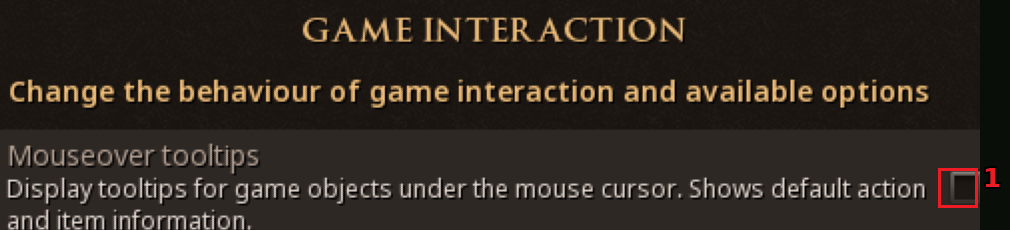
Gameplay → Interfaces → Game Interaction
- Mouseover tooltips: Off
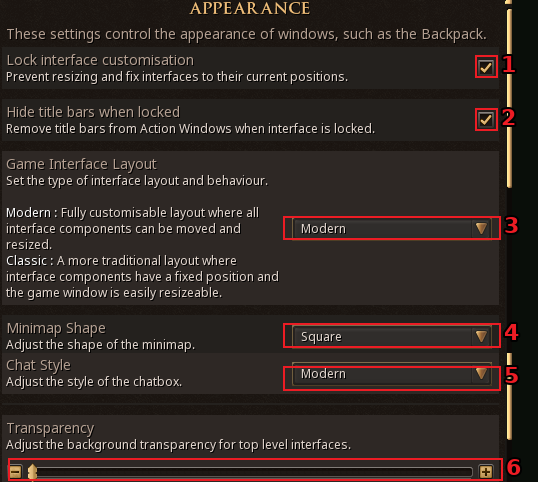
Gameplay → Interfaces → Appearance
- Lock interface customisation: On
- Hide title bars when locked: On
- Game Interface Layout: Modern
- Minimap Shape: Square
- Chat Style: Modern
- Transparency: Off
Graphics
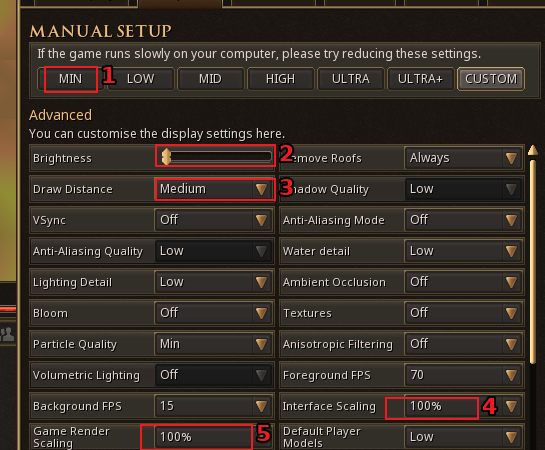
- Manual Setup: Min (recommended — improves performance and screen readability)
- Interface Scaling: 100%
- Game Render Scaling: 100%
- Brightness: Max (optional but recommended)
- Draw Distance: Medium / High / Ultra (recommended)
Accessibility → High Contrast Mode
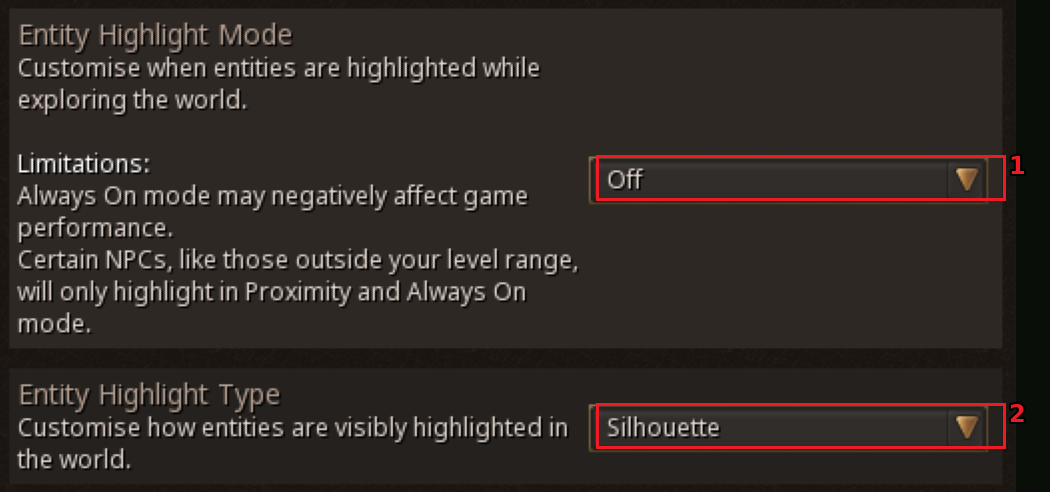
- Option 1 → Entity Highlight Mode: Off
- Option 2 → Entity Highlight Type: Silhouette & Entity Highlight Mode: Always On.
This works best for high-contrast mode, but works in either case.
Miscellaneous
Do not have any overlays, buffs, or extra elements that overlap or cover any interface edges.
- Do not use full-screen interfaces/dialogue.
- No additional interfaces (e.g. extra inventory panels)
- For a known stable layout: click the cogwheel icon > "Edit Layout Mode" > "Default" and make one small adjustment - use a single right-hand-side panel (where the inventory is) instead of two.